Hey everyone! While using my Inventory System in UE5, I found I was in need of a lot of icons for all the game’s collectables. I have all the 3D models for my in-game items, but I didn’t want to manually create 30 different icons to display in the Inventory UI by hand. Part of being a solo dev is finding creative solutions to cut down on dev time. So, I used Unreal to create all of my icons for me from the collectable’s 3D models! 😃 Let’s go through how to set this up.
First though, big shoutout to DrawWithNightBuzzer for showing me how to take still images in Unreal. You’ll also want to make sure to enable the Movie Render Queue plugin:

Step 1: Set Up Your Collectable Blueprint
The first thing I set up was the blueprint for the collectable object, BP_Collectable_Base. This blueprint uses a Data Table reference to retrieve all the metadata for the chosen collectable.
The setup for this blueprint is pretty simple. It:
- Retrieves the metadata from the Data Table
- Sets the static mesh based on this data
- Places the mesh on the ground via a Line Trace
This allows me to change the collectable on the fly when I’m placing them around my levels. It also facilitates the icon generation.
Step 2: Set Up the Icon Capture Scene
To set up the icon generation, you’ll need to create a new empty level and update a project setting.
In Project Settings → Rendering, enable the Alpha Output option:
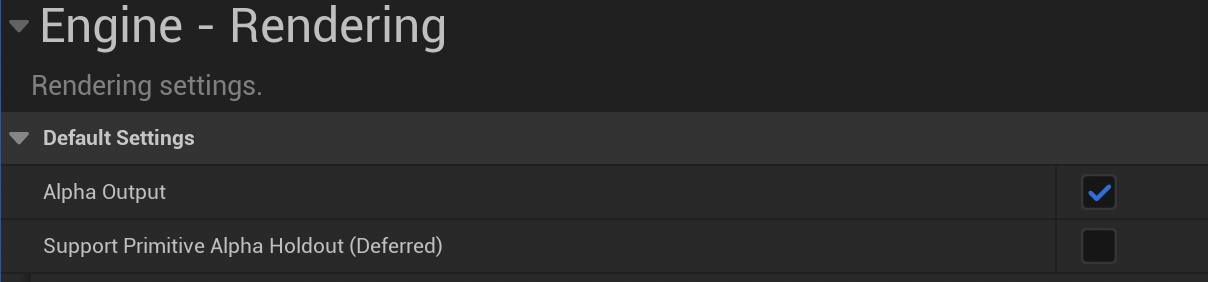
This ensures the background will have an alpha value of zero. With the new level created and settings enabled, set up your empty scene with:
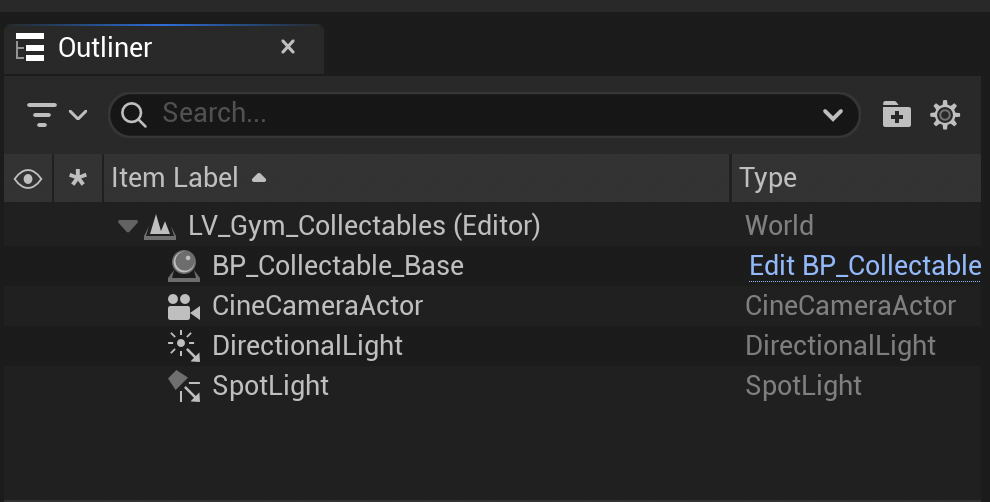
- Your collectable blueprint actor
- Lighting setup (I used both a Directional Light and a Spot Light)
- A
CineCameraActor
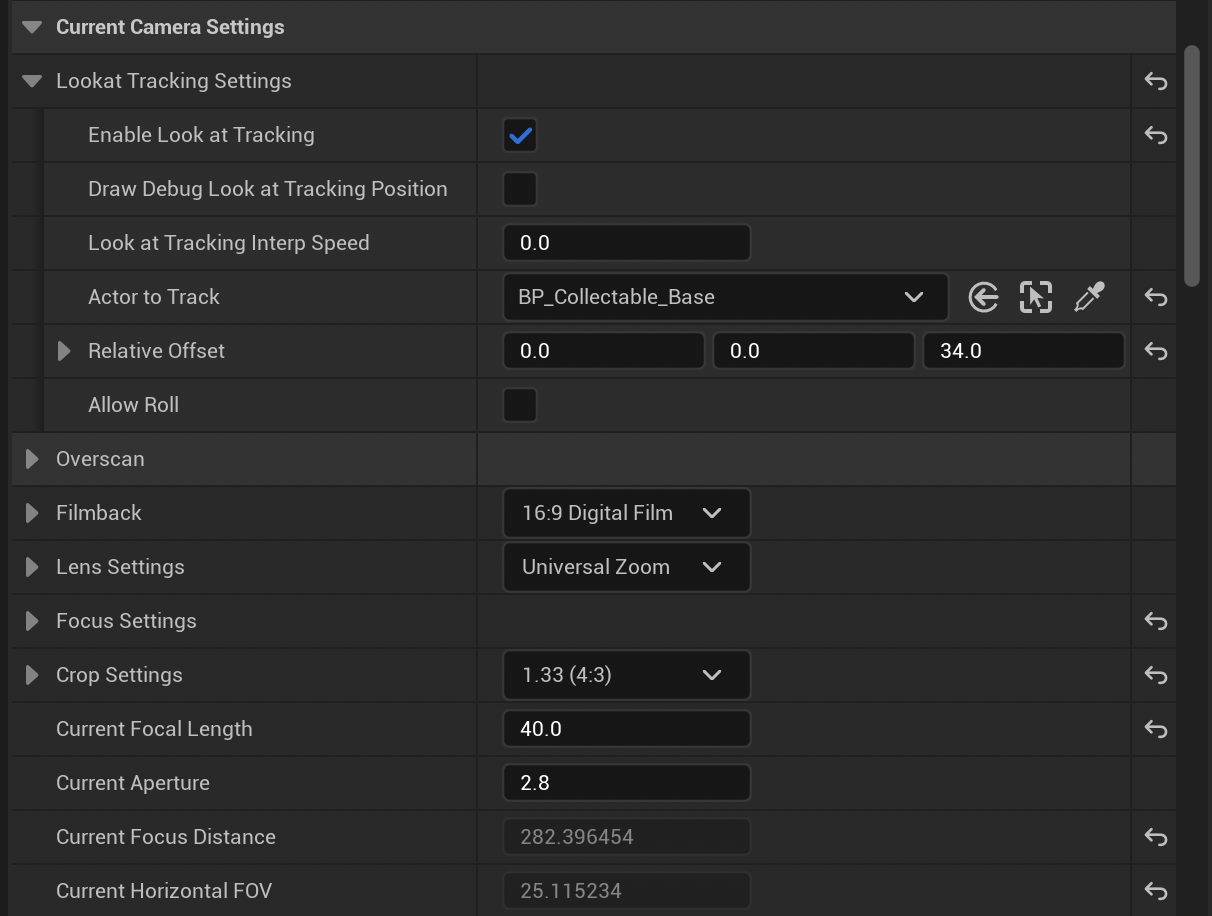
After testing multiple setups, these camera settings worked best for my items:
Enable Look At Tracking- ✅Actor to Track-<Collectable Item Reference>Relative Offset-(0.0, 0.0, 34.0)Crop Settings-1.33 (4:3)Current Focal Length-40.0
Step 3: Animate Your Items in a Level Sequence
Now for the good part.
Start by creating a new Level Sequence Actor and a Level Sequence asset. If it’s not already open, open the Sequencer window:
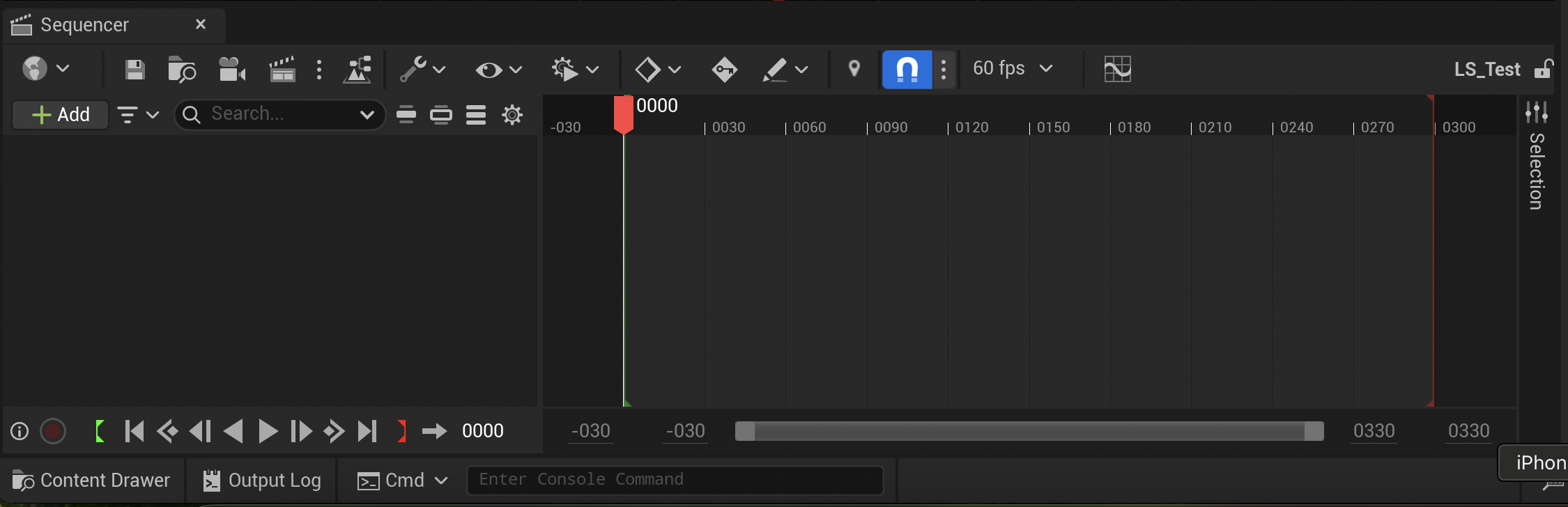
Click Add → Actor to Sequencer, then add your CineCameraActor.
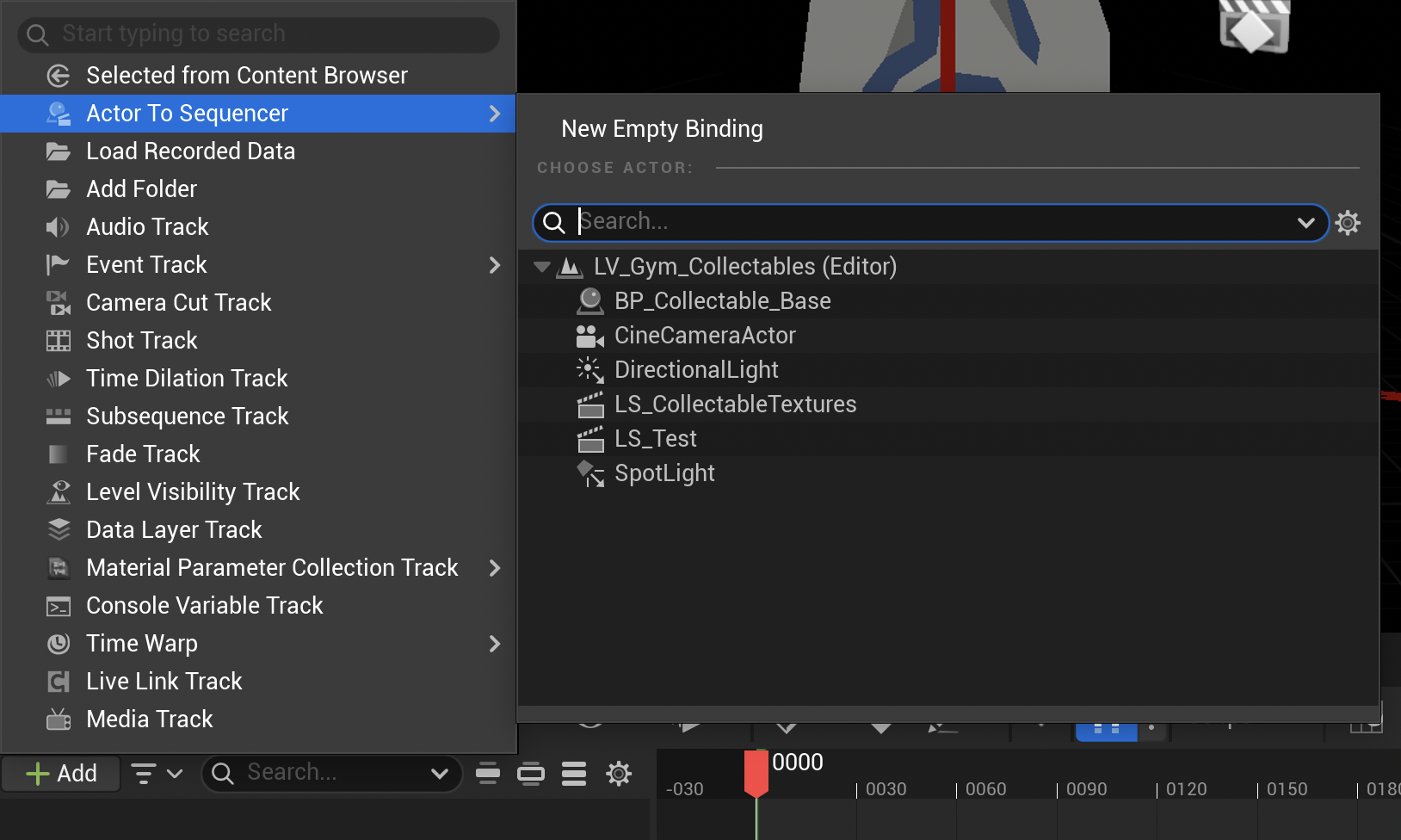
Repeat this for your collectable item actor so it’s also part of the Level Sequence. Now, let’s animate the item reference so it cycles through each collectable.
Blueprint Setup for Animation
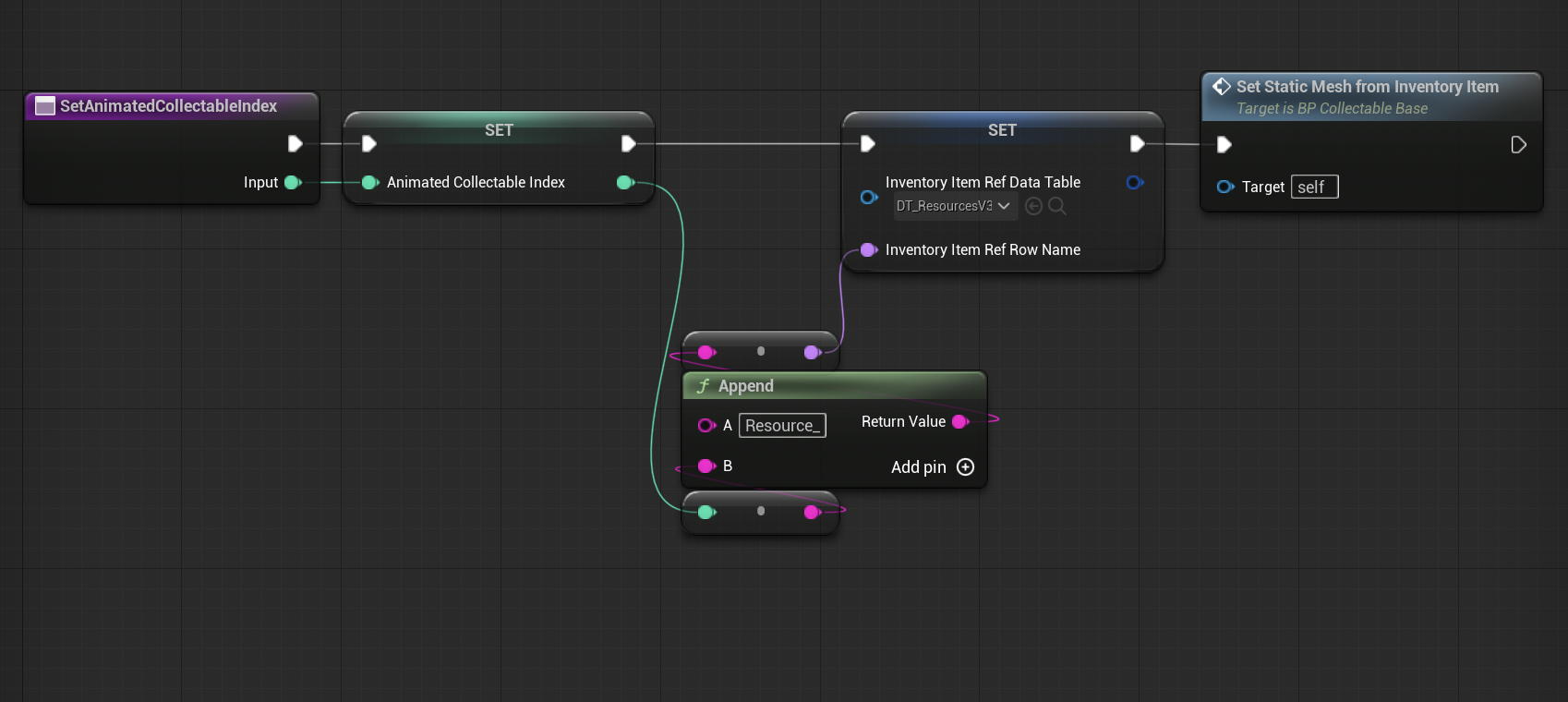
Unfortunately, Data Table Row Handles are not animatable. To work around this, I added a new Integer variable called AnimatedCollectableIndex to the collectable blueprint. This index is only used for animation. Then, I created a function called SetAnimatedCollectableIndex.
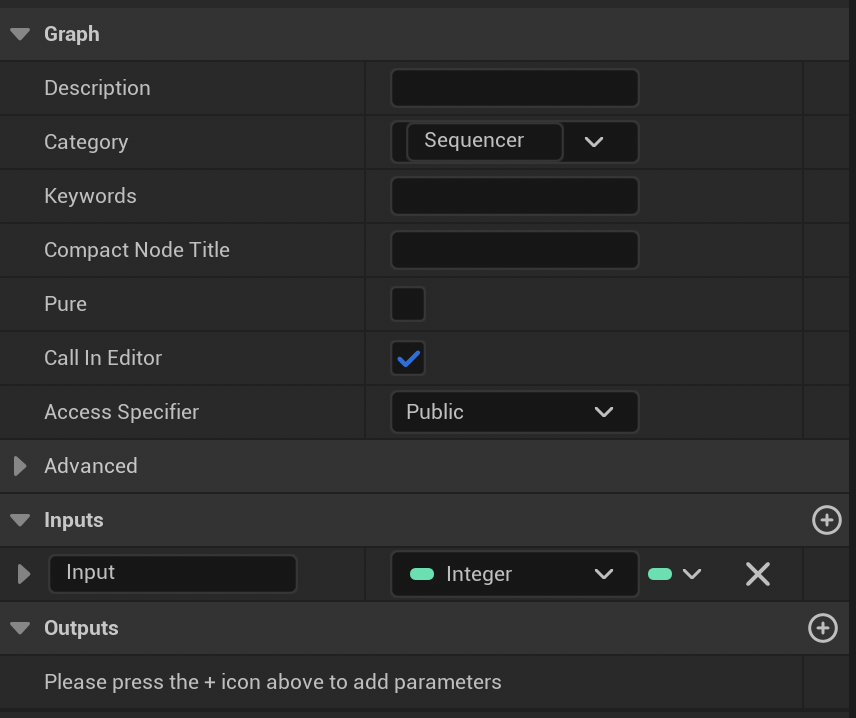
⚠️ The function has to be named after the property. It won’t work otherwise. ⚠️
It has an Integer input and the name must also be Input. In the function details panel, the Call in Editor setting must be enabled as well.
My Data Table uses Resource_ followed by an index as the Row Name. So, in the function, I concatenate Resource_ with the Input index, set the Data Table Row Handle, and update the static mesh accordingly.
Keyframing the Sequence
Back in the Level Sequence:
- Add a keyframe for each item using the
AnimatedCollectableIndexproperty
Because Call in Editor is enabled, Unreal will invoke the setter function when the value changes.
I initially set a keyframe every single frame, but this ended up creating blurry images since the mesh was constantly changing. A better solution was setting the new index every 7 frames. With that done, you should be able to scrub through the sequence and see the mesh update dynamically.
Step 4: Export Icons with the Movie Render Queue
Last step! In the Sequencer toolbar, click the clapperboard icon to open the Movie Render Queue window:
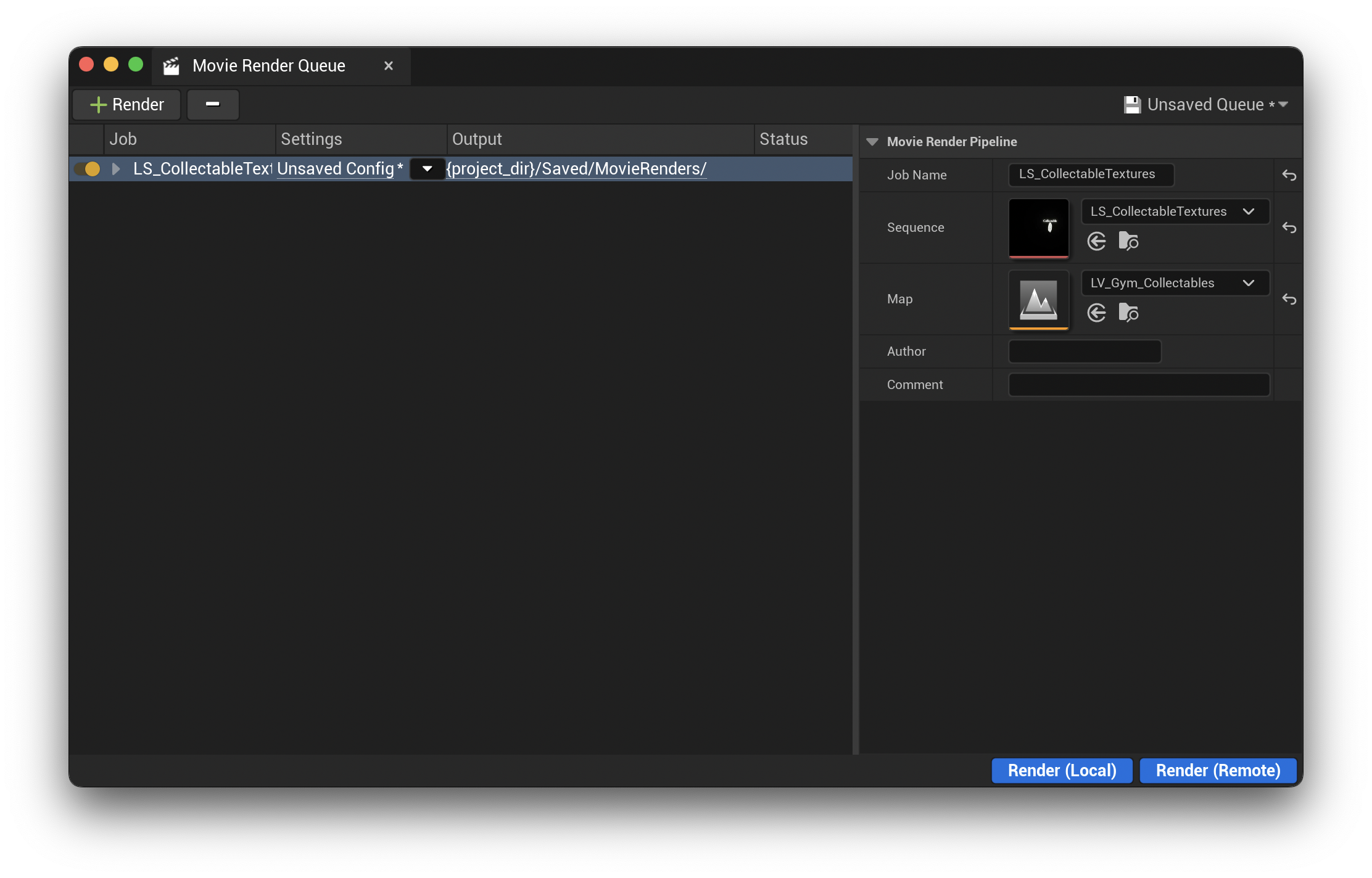
Click where it says “Unsaved Config” to bring up the settings for the render. You’ll want the following settings:
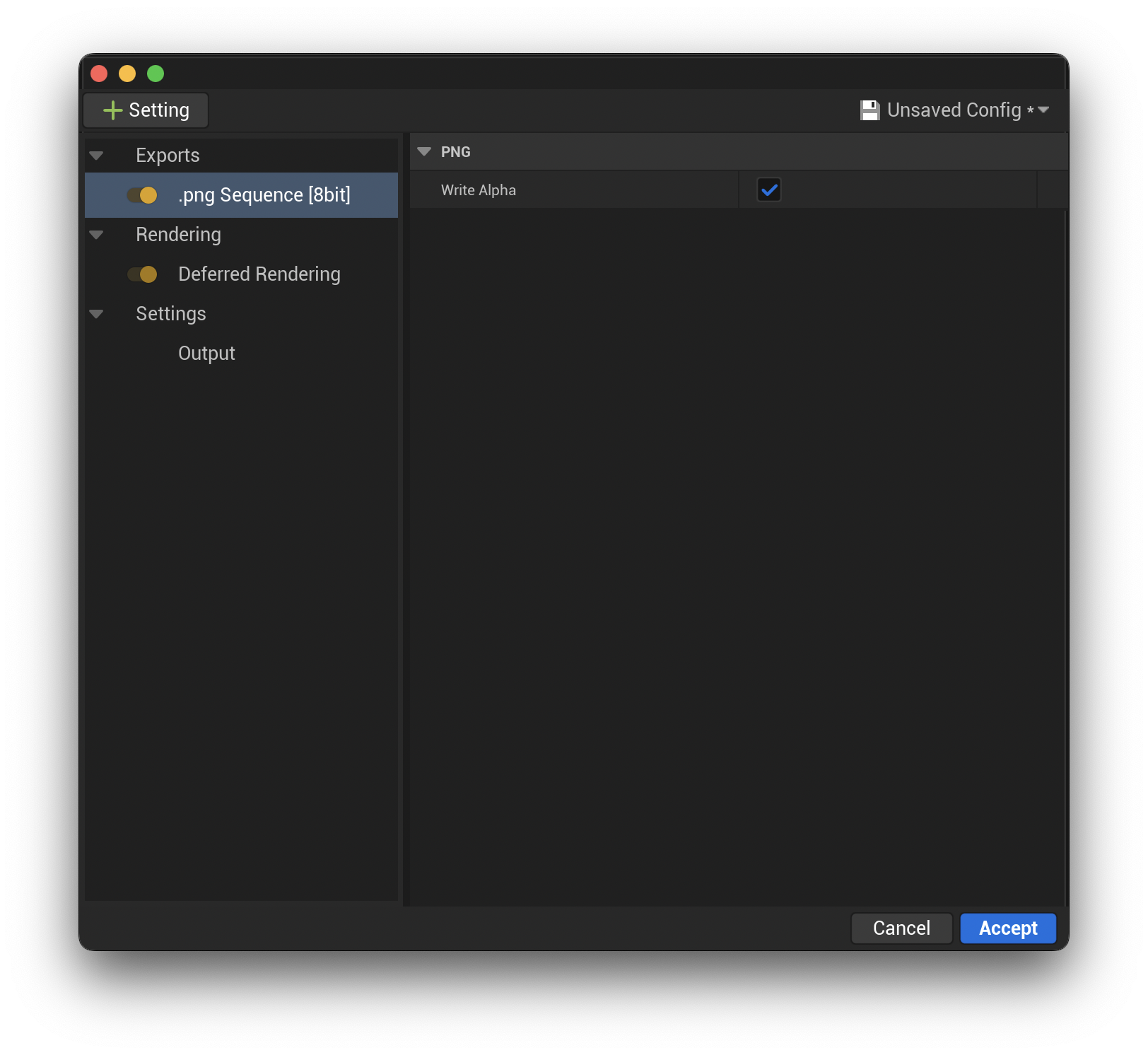
PNG Export Settings
Write Alpha- ✅
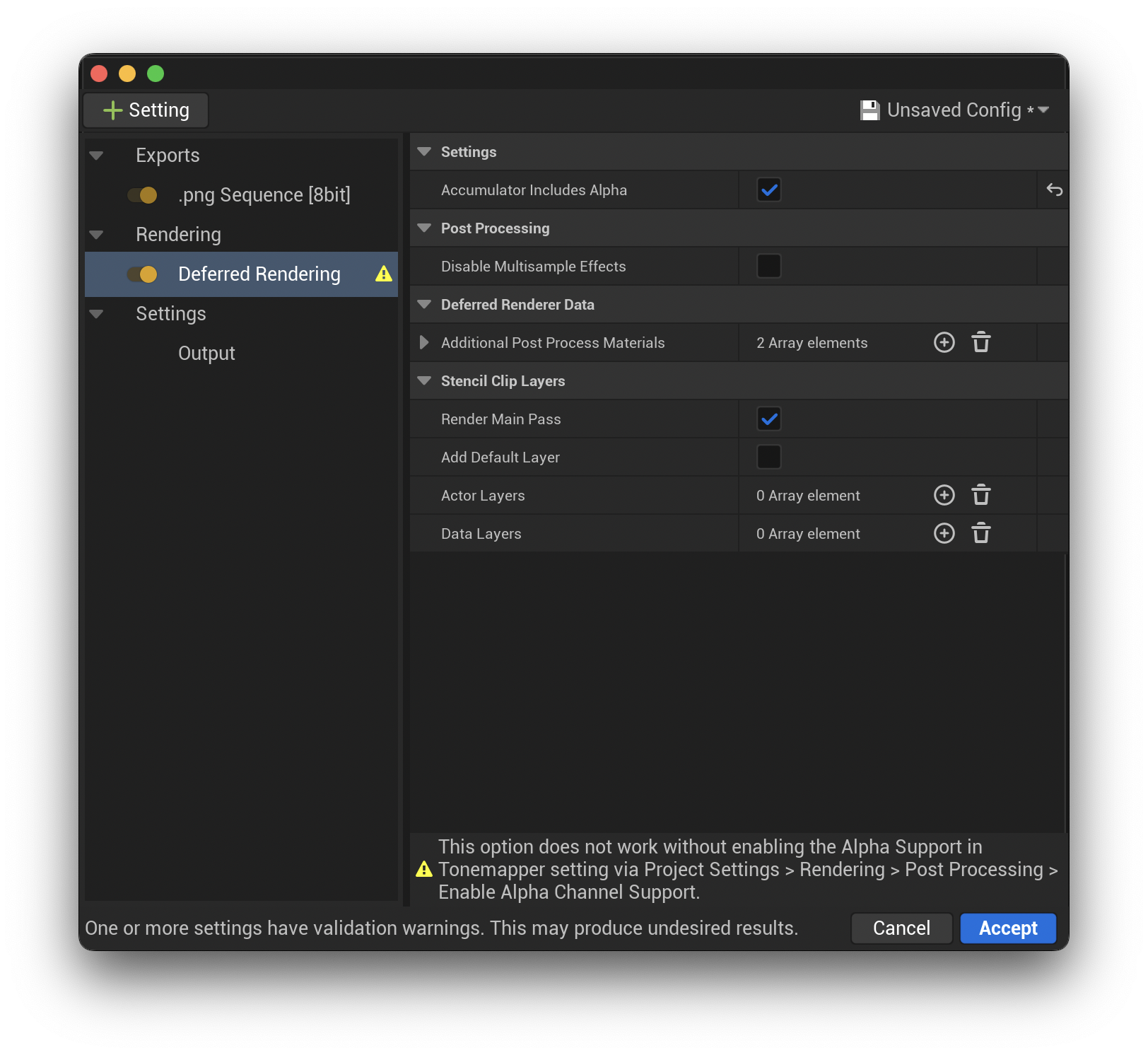
Rendering Settings
Accumulator Includes Alpha- ✅ (Requires Project Settings -> Rendering Alpha Output enabled)
Output Settings
Output Directory-<path/to/your/directory>Output Resolutation-1024x1024Handle Frame Count-0Output Frame Step-7
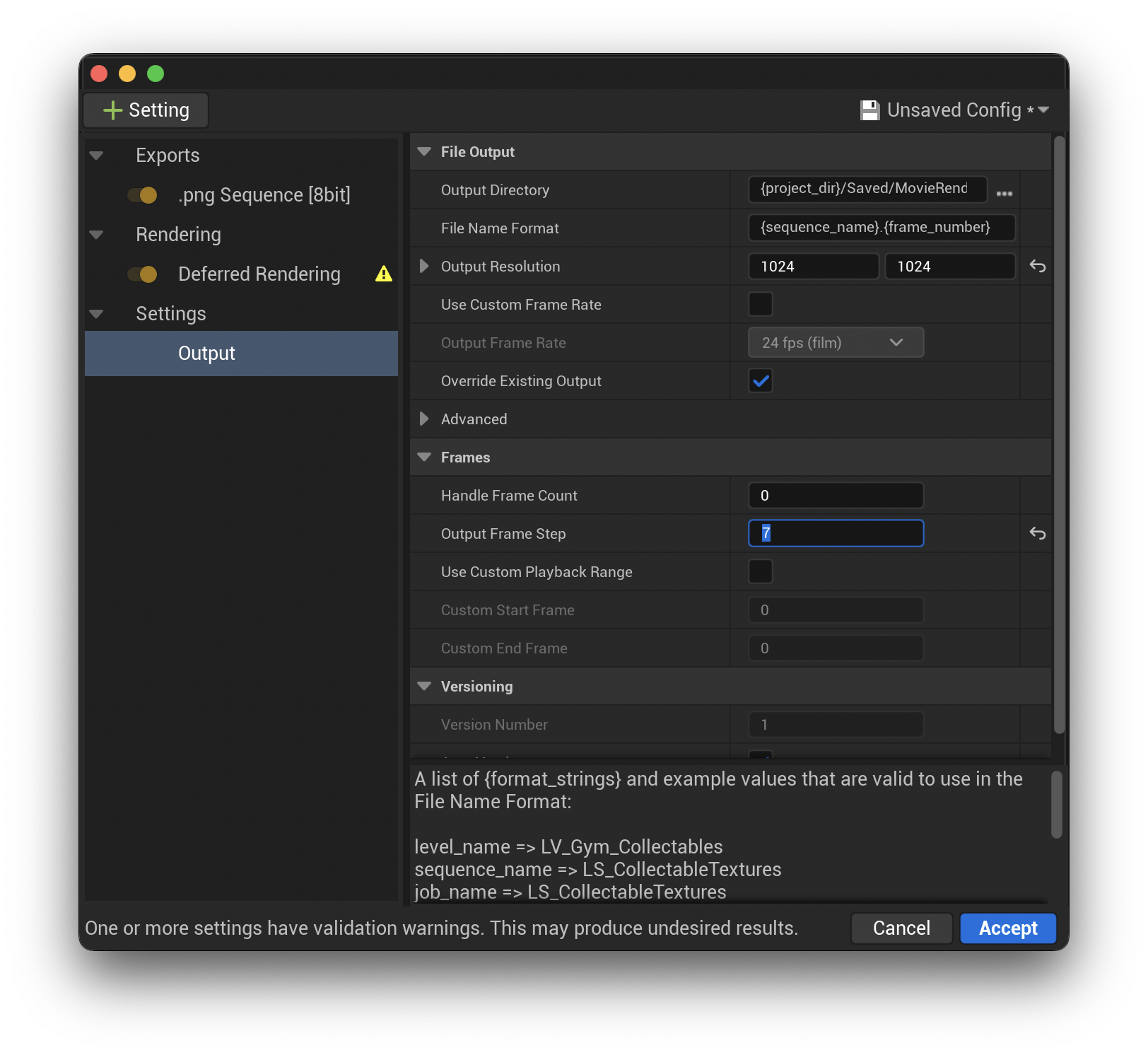
Make sure to click Accept on the settings dialog. And once you’re happy with your scene and settings, click Render (Local) and Unreal will export your icons as PNGs.
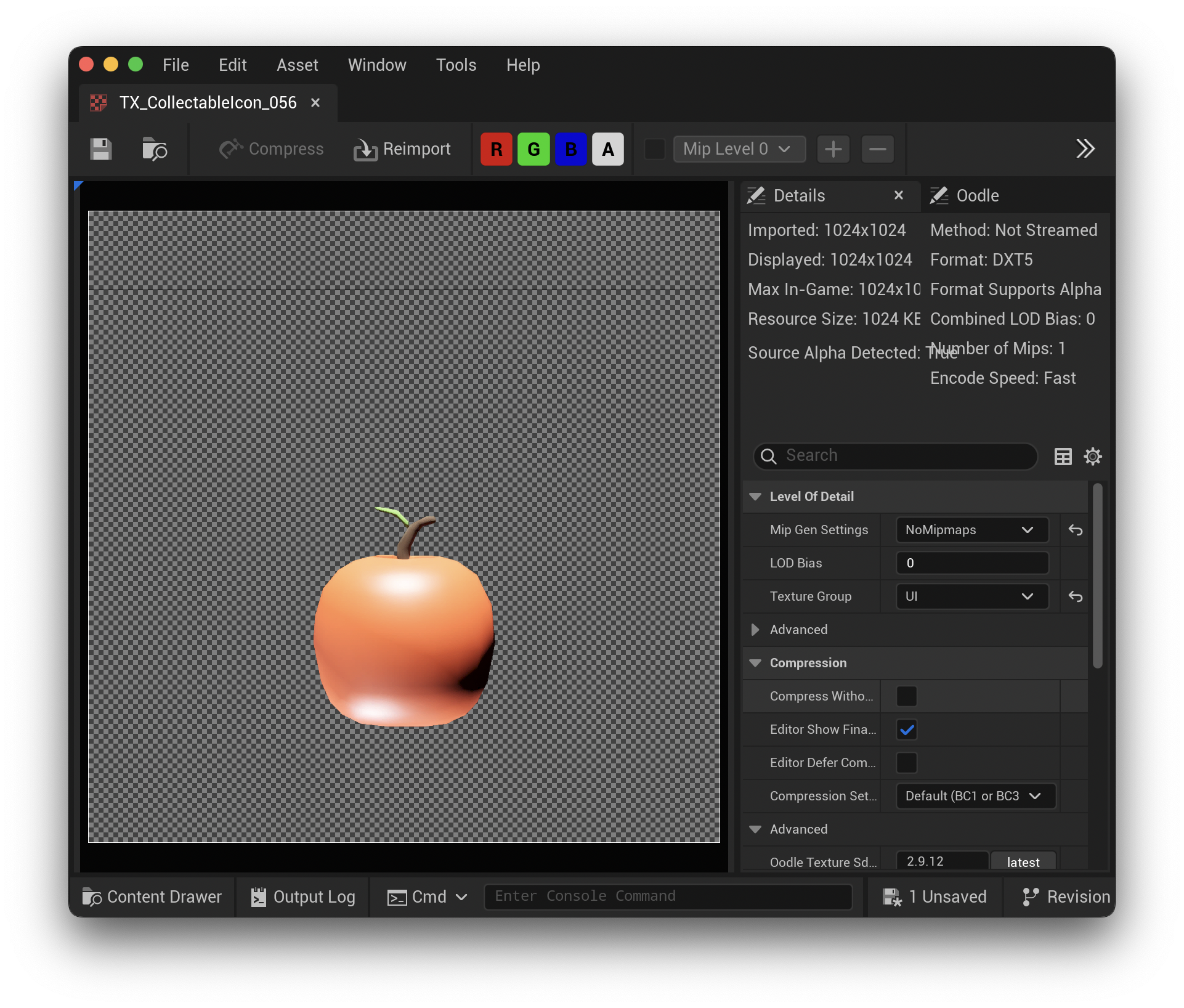
Final Thoughts & Reusability
And with that, we have all the textures we need for each item. If you ever add more items, it’s as simple as:
- Adding new keyframes
- Re-rendering the sequence
This technique can also work beyond collectables. As long as your blueprint includes an animatable property and a Call in Editor function, you can generate icons for weapons, armor, consumables, characters, anything!
Hopefully this helps your project, and thank you for reading!
Follow me on Bluesky for more devlogs and behind-the-scenes posts!